> For the complete documentation index, see [llms.txt](https://docs.pulselabs.ai/llms.txt). Markdown versions of documentation pages are available by appending `.md` to page URLs; this page is available as [Markdown](https://docs.pulselabs.ai/data-capture-tools/survey-creation-and-management.md).

# Surveys

### What are surveys in Pulse Labs?

Surveys are questionnaires that let you collect structured responses from participants asynchronously. You build a questionnaire, invite participants, and review responses as they come in. The underlying survey engine used by Pulse Labs gives you access to a full range of question types, conditional logic, and validation rules.

The standout feature is AI-assisted survey creation: describe what you want to ask in plain language or paste your survey draft or outline, and the platform generates a structured survey that you can then refine.

### Creating a survey

On the Next Steps screen, select **Add Capture Series** and then select **Survey**. The creation flow has four steps.

#### Step 1: AI companion (optional)

**Note:** You can skip this step entirely and build manually.

You'll see a text input where you can describe your survey protocol or paste in your existing survey outline. If you’ve coded your survey in JSON, you can also paste the JSON code.

<figure><img src="https://3270273690-files.gitbook.io/~/files/v0/b/gitbook-x-prod.appspot.com/o/spaces%2FWCt1H4tz9q0ev1mtKxrm%2Fuploads%2Fgit-blob-ab59985d8e0ea125dda65a6d5379fad6f481e083%2FCreate%20Survey%20(example%20shown).png?alt=media" alt=""><figcaption></figcaption></figure>

Examples of what you can paste in:

* A list of questions: "Do you own a car? If yes, what make? How satisfied are you?"
* A research brief: "I want to understand how people choose streaming services"
* Bullet points of topics to cover

AI generates a structured survey with appropriate question types and basic conditional logic. For example, if you ask about car ownership and then car make, AI will set up branching so the make question only appears for car owners.

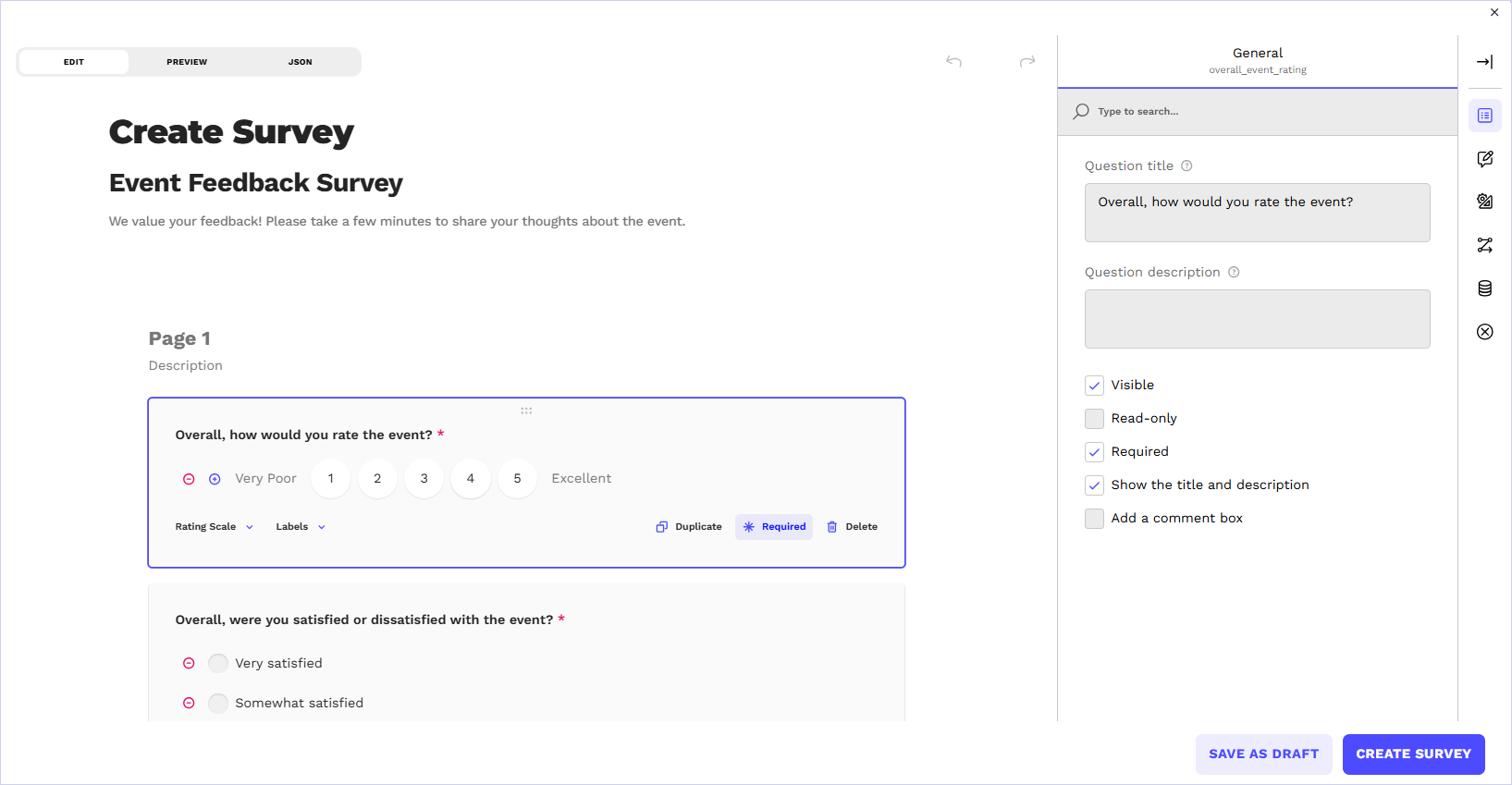
#### Step 2: Survey builder

The survey builder is where you design, refine, and preview your survey. It has three tabs:

* **Edit** — Make changes to the survey as a whole or individual questions and their choice of options
* **Preview** — View the survey as your participants will see it on a mobile device or browser
* **JSON** — View the survey’s JSON code and edit as needed

<figure><img src="https://3270273690-files.gitbook.io/~/files/v0/b/gitbook-x-prod.appspot.com/o/spaces%2FWCt1H4tz9q0ev1mtKxrm%2Fuploads%2Fgit-blob-612468d2e3dd0e559ea8fc30ad1aa6ecd88cd27e%2FCreate%20survey_canvas%20and%20panel.png?alt=media" alt=""><figcaption></figcaption></figure>

**Question types available**

<table data-header-hidden><thead><tr><th width="223.800048828125"></th><th></th></tr></thead><tbody><tr><td><strong>Type</strong></td><td><strong>Use Case</strong></td></tr><tr><td>Long Text</td><td>Multi-lined open-ended responses</td></tr><tr><td>Single-Line Input</td><td>Short free-form response</td></tr><tr><td>Radio Button Group</td><td>One answer from a list</td></tr><tr><td>Rating/Scale</td><td>Scaled responses and format (1-5, stars, etc.)</td></tr><tr><td>Checkboxes</td><td>Multiple answers from a list</td></tr><tr><td>Dropdown</td><td>One answer from a long list (saves space)</td></tr><tr><td>Multi-Select Dropdown</td><td>Multiple answers from a long list (saves space)</td></tr><tr><td>File Upload</td><td>Collect files or screenshots from participants</td></tr><tr><td>Image Picker</td><td>Upload an image to support the question</td></tr><tr><td>Ranking</td><td>Drag-and-drop ordering of items</td></tr><tr><td>Single-Select Matrix</td><td>Same question applied to multiple items</td></tr><tr><td>Multi-Select Matrix</td><td>Same question applied to multiple items that have multiple answers</td></tr></tbody></table>

We also support signature, expression, HTML, and Yes/No (Bolean) question types, but those are less common.

**Configuring questions**

Select any question to open its properties in the side panel. Key settings include:

* **Required** — Whether the participant must answer before continuing
* **Description / Help Text** — Additional context shown below the question
* **Validation rules** — Set min/max values, maximum character limit, or use regex patterns to enforce custom formats (e.g., require an Employee ID field to match a specific pattern such as two letters followed by four numbers). For step-by-step instructions, see the [SurveyJS Data Validation guide](https://surveyjs.io/survey-creator/documentation/end-user-guide/data-validation-in-forms).
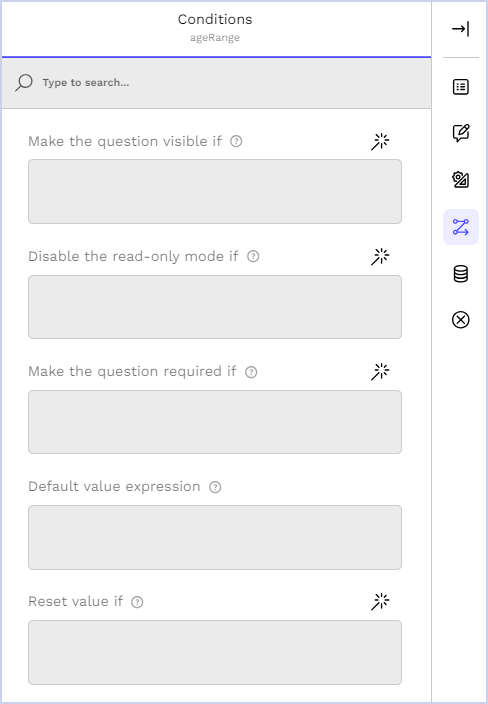
* **Visibility conditions** — Show this question only when a previous answer meets certain criteria
* **Choice randomization** — Randomize question order to reduce bias
* **"Other" and "None" options** — Add these with a toggle

**Conditional logic**

Conditional logic lets you create if-then rules that control survey flow:

* Show or hide questions based on previous answers
* Skip entire pages based on a response
* Set default values automatically
* Show informational content at specific points

<div align="left"><figure><img src="https://3270273690-files.gitbook.io/~/files/v0/b/gitbook-x-prod.appspot.com/o/spaces%2FWCt1H4tz9q0ev1mtKxrm%2Fuploads%2Fgit-blob-04296b157e69905f2215c11e840b9e6af9bedd67%2FEdit%20questions_Conditions%20panel.png?alt=media" alt="" width="366"><figcaption></figcaption></figure></div>

#### Step 3: Add participants

Add participants to your survey by:

* **Email** (Bring Your Own) — Type individual email addresses and add first name and last name for each
* **CSV upload** (Bring Your Own) — Upload a bulk list of participants that includes their email addresses and first and last names
* **From our participants** —Recruit from the Pulse Voices panel
* **From your project pool** — Select from participants previously invited to a past project

You can skip this step and add participants later on the Recruitment tab.

#### Step 4: Launch

Review your survey configuration and choose to:

* **Preview** — View your survey as your participants will experience it via a link and a password
* **Launch now** — Immediately sends invitations and accepts incoming responses

### Survey dashboard

Once created, each survey has its own dashboard showing:

* **Survey name** and **status** (Draft, Open, or Closed)
* **Responses** tab — Displays after launch; includes a responses count
* **Highlights** tab — Displays after launch; includes a highlights count

From the survey dashboard, you can:

* Select multiple responses for bulk actions
* Select a single response to view full details
* Compare response versions (if a participant resubmitted)

Responses are managed with approval workflows.

* **Pending** — Participant invited, survey not started or not completed
* **In progress** — Participant has started survey, but not finished
* **Completed** — All responses submitted in full but not approved or rejected

Once a response is completed, the researcher approves or rejects it.

* **Approved** — Response is reviewed and accepted
* **Rejected** — Response doesn't meet your team’s quality standards

#### Data capture settings

These settings can be modified at any time before launch:

* **Survey** - Edit the survey as needed before launch
* **TImeline** - Set the end date and end time
* **Preview Link** - Copy a URL link and password to view and take the survey from a participant’s viewpoint.

#### Previewing your survey

You can preview your survey in two ways. Use the password-protected **Preview Link** to test your survey as a participant would experience it. This preview link can also be accessed from the participant dashboard.

You can also use the Preview tab from the survey builder which supports:

* **Desktop view** — Full-width layout
* **Mobile view** — Narrow layout simulating a phone screen
* **Full interactivity** — Test conditional logic, validation, and navigation

Previewing your survey highlights any issues like missing required fields, broken logic rules, or accessibility concerns.

### Requesting revisions

If you need a participant to re-take a survey to obtain improved data, you can request a revision. Possible reasons for a revision request may include:

Possible reasons for requesting a revision include:

* Incomplete answers
* Missing/corrupt file attachments
* Misunderstanding of the questions
* Conflicting answers

Select the survey you want revised and move it to a **Request Revision** status; the participant will be prompted to take the survey again. Once the revision is submitted, you can compare versions side by side.

### Tips for good surveys

* **Try using the builder** — Copy the text from your survey outline and paste it into the survey text field to automatically create your survey. From there, you can preview and edit the survey as needed.
* **Use conditional logic** — Hide irrelevant questions. For example, ensure the survey does not prompt users who don’t own a vehicle for their driving habits.
* **Keep it concise** — Respect participant time. Use logic to keep the effective length low even if the total question count is high.
* **Test all paths** — Use Preview to walk through every combination of answers, especially if you have complex branching.
* **Randomize choices** — Enable choice randomization for opinion questions to reduce order bias.
* **Add progress indicators** — Configure multi-page surveys to show participants how far they've come.

***

\ <br>


---

# Agent Instructions
This documentation is published with GitBook. GitBook is the documentation platform designed so that both humans and AI agents can read, navigate, and reason over technical content effectively. Learn more at gitbook.com.

## Querying This Documentation
If you need additional information that is not directly available in this page, you can query the documentation by asking a question.

Perform an HTTP GET request on the following URL with the `ask` and `goal` query parameters:

```
GET https://docs.pulselabs.ai/data-capture-tools/survey-creation-and-management.md?ask=<question>&goal=<user_goal>
```

`ask` is the immediate question: it should be specific, self-contained, and written in natural language.
`goal` is what the user is ultimately trying to achieve, the reason they need the answer. Sharing it helps GitBook give you a better, more relevant answer. A goal is most helpful when it describes the outcome the user wants rather than restating the question. For example, with `ask=how do I create an API token`, a goal like `automate deployments from our CI pipeline` lets GitBook tailor the answer to that use case.

The response will contain a direct answer to the question and relevant excerpts and sources from the documentation.

Use this mechanism when the answer is not explicitly present in the current page, you need clarification or additional context, or you want to retrieve related documentation sections.